Showing posts with label Mac Issues. Show all posts

Tuesday, April 22, 2025

Fix the "ls: Operation Not Permitted" Error on Mac

Recently, I encountered an issue when trying to execute the ls command in Terminal. This is a commonly used command to display the contents—files and directories—within a specific path. I need to know what's there before I do anything.

ls Error

  1. MyMac-MBP13:~ auser$ ls
  2. Applications Untitled.html
  3. Desktop downloadtemp
  4. Documents iCloud Drive (Archive)
  5. Downloads iCloud Drive (Archive) - 1
  6. Library iCloud Drive (Archive) - 2
  7. Movies test
  8. Music test.aiff
  9. Pictures test.html
  10. Programming tmp
  11. Public vc.swift
  12. Sites
  13. MyMac-MBP13:~ auser$ cd ~/Library/Application\ Support/MobileSync/
  14. MyMac-MBP13:MobileSync auser$ ls
  15. ls: .: Operation not permitted
  16. MyMac-MBP13:MobileSync auser$

After searching online, I discovered that this issue is due to a security enhancement introduced by Apple in the latest macOS: System Integrity Protection (SIP). By default, the Terminal app does not have the privilege of Full Disk Access. My current macOS version is Sequoia 15.3.2.

Change System Settings

According to a solution on the CleanMyMac blog titled “How to fix the ‘ls: .: operation not permitted’ error in Terminal,” I needed to adjust a setting in System Settings.

Initially, when I navigated to Privacy & Security, I couldn’t find the Full Disk Access option.

I wasn’t sure where the setting was—until I tried searching for “Full Disk.”

I turned it on.

The hidden setting was revealed. As expected, Terminal did not have Full Disk Access by default. I enabled it by entering my admin password. Now, the ls command works anywhere in the console, after re-opended.

  1. MyMac-MBP13:Application Support auser$ ls Mob*
  2. Backup
  3. MyMac-MBP13:Application Support auser$

Revert the Setting (Optional)

I believe Apple’s SIP is a great safety feature. After finishing my work in Terminal, I turned off Full Disk Access for the Terminal app to restore the default setting. I’m writing this blog post for future reference, in case I need to do similar work in Terminal again.

References

Other Blogs

Tuesday, March 11, 2025

Process Behind Spotlight

This topic is related to my previous blog on Time Machine Backup Issues

While working on my Mac’s Time Machine backup, I believe I disabled the Spotlight process. Spotlight was indexing my external Time Machine backup drive, which prevented me from resetting and cleaning up the drive.

After resolving my Time Machine backup issue, I realized that Spotlight was no longer working. I could no longer launch applications quickly using Command + Space. It was quite frustrating.

Checking Spotlight Settings

I went to System Settings -> Spotlight, but all the Spotlight settings appeared to be correct. Unfortunately, I couldn’t find an option there to restart Spotlight.

Restarting the Spotlight Process

Eventually, I figured out how to restart the process—the same process I had modified while troubleshooting my Time Machine backup issue. Here’s how you can do it:

Steps to Restart Spotlight

  1. Open Terminal from
    Applications->Utilities->Terminal
    . (Since Spotlight wasn’t working, I had to open it manually.)
  2. Run the following command:
    sudo mdutil -a -i on
    

The mdutil tool is used to manage Spotlight’s indexing process. I realized that I had previously disabled this service, and while I had restored my Time Machine backup, I had not re-enabled Spotlight indexing. That’s why Spotlight was not working.

After running this command, Spotlight started working within minutes. I could once again use Command + Space to launch my frequently used applications, such as Preview, Terminal, MacVim, and Safari.

Spotlight’s Background Process: mds_store

One interesting note about Spotlight’s indexing process is that it is managed by a background process called mds_store. However, when I checked Activity Monitor, I couldn’t find a process with that exact name. It’s possible that the process name has changed, but in any case, the steps above successfully restored Spotlight’s functionality.

If you have disabled this process, you will need to manually enable it using the steps above.

References

Thursday, March 6, 2025

Time Machine Backup Issue

Recently, I discovered that my Time Machine backup to an external hard drive was no longer working. I kept receiving failure messages, but they did not clearly explain the reason for the failure. Eventually, I realized that the available space on the drive was insufficient.

The quickest way to resolve this issue was to erase all backup data on the drive and start a fresh backup from scratch.

Erasing Time Machine Data

The best way to erase Time Machine data from the drive is by using the Disk Utility tool, which wipes out all data and reformats the drive as needed. However, when I attempted to erase the drive, I encountered another failure message. The system reported that the process "mds_store" was preventing the operation (holding the drive).

Following advice from a Google search, I tried terminating the process via Terminal. However, even after killing the process, I encountered the same failure message when attempting to erase the drive again.

Finally, I found a solution! I restarted my Mac in Safe Mode by holding the Shift key during startup. Since Safe Mode runs with minimal processes, I was able to successfully erase the data on the drive by using Disk Utility.

Adding the Drive Back to Time Machine

Once I had the drive ready, another issue appeared—the drive did not show up in the list of available backup drives, preventing me from adding it back to Time Machine.

I recalled receiving a warning message about "Forgetting this drive as a Time Machine backup" when I initially removed the external drive from the Time Machine settings. It seemed that macOS had stored a hidden setting to prevent this drive from being used as a Time Machine backup again. Unfortunately, I wasn’t sure where to change this setting.

Fortunately, I noticed that another partitioned drive appeared as an available Time Machine option. This drive contained important data, such as my picture libraries and historical records. When I selected this drive as a Time Machine backup, the backup process started immediately. However, I did not want to use this drive for backups, so I stopped the process.

One thing I observed was that a Backups.backupdb directory was created on this data drive. I decided to copy this directory to my intended backup drive. To my surprise, after doing this, the drive finally appeared in the Time Machine settings as an available backup option!

Time Machine Permissions

Another interesting discovery was related to permissions on my Time Machine drive.

When I erased and reformatted the drive, the permission settings were as shown in the following picture:

These permissions were the same as those of my data drive. However, when the drive was set up as a Time Machine backup, the permissions changed to the following:

I noticed that I could no longer modify these permissions or add an admin user. If I wanted to copy or erase any data on the drive, I had to enter my admin passwordeach time.

Conclusion

After a long struggle, I finally managed to get my Time Machine backup working again!

Thursday, November 14, 2019

iCloud Continuity

One of iCloud Continuity features is copy/paste. I like this very much. I could type in text on my Mac, then make a copy. With this continuity, I could paste text easily on my iPhone.

However, my recent Mac update from MB Air to MB Pro. I could have this feature to work on my new MB Pro. I tried to search for solutions on web but with no luck.

Apple Support


Today, I decided to get help from Apple. All of my Apple devices are out of Apple Care warrantees, MBP is 2017 and iPhone is XR. I thought that my issue is Mac OS update related issue, I may be able to get help from Apple, based on my previous experience from Apple support.

I phoned 1-800 line. Not waiting for long, I got a real person helper. I told him my story and also mentioned that I have turned on Wifi same network and Bluetooth. That saves him time to investigate issues. He put me on hold to search for support information.

It seems that there is no need having Apple Care to get Apple's support. My case is OS ie iCloud service issue. That's really nice service from Apple.

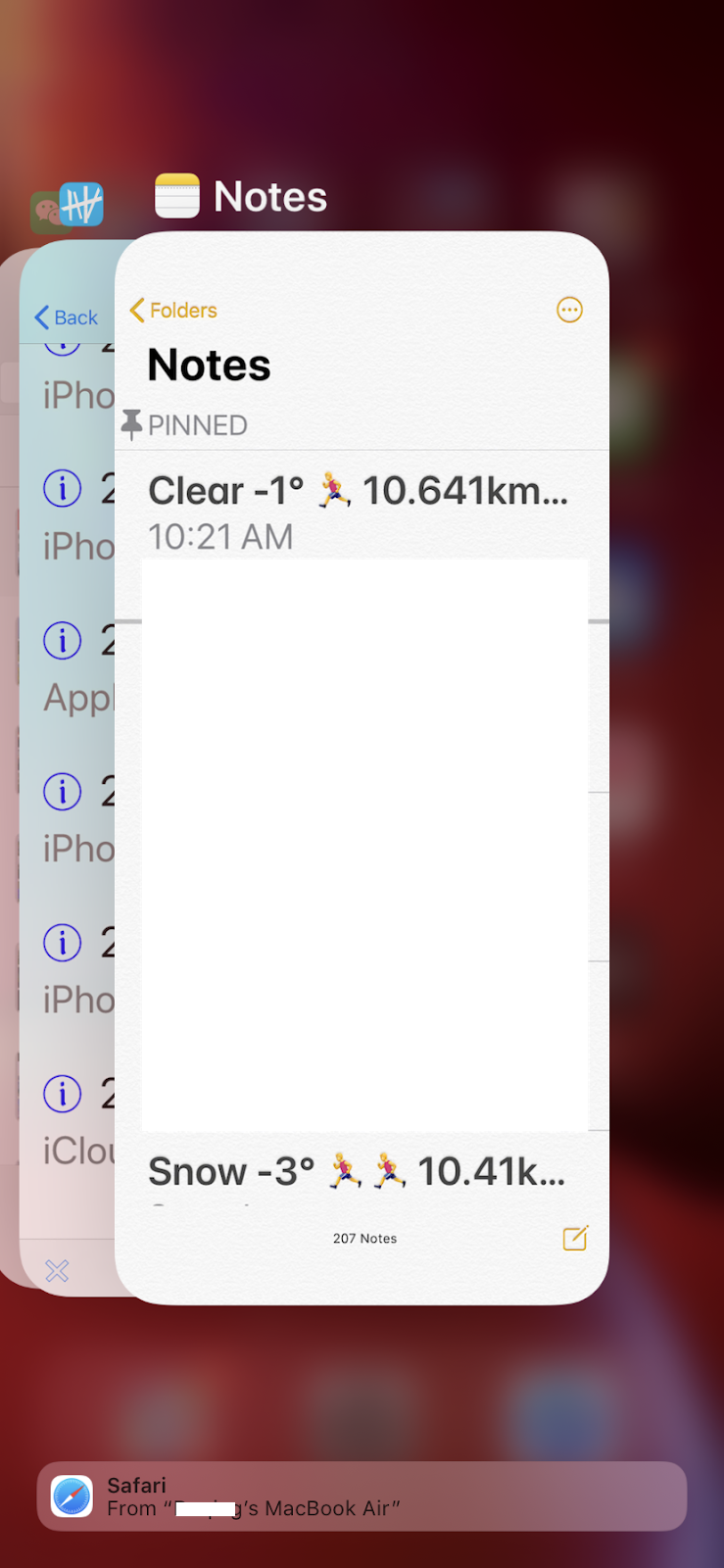
While the waiting time, I tapped my iPhone on bottom and swipe up to get active apps. I noticed that on the bottom, Safari with a message saying to my MBA. I realized that my iCloud might be paired to my iPhone and my previous MBA!


I took my MBA out and turned it on. I tried to copy something text there. Then I got the text pasted on my iPhone. It works, but no my updated MBP.

The helper was back. I told him my findings. I said, it might be my iCloud service is paired between iPhone and MBA. Is there any way to find out this pairing and change it to my MBP? I asked.

To cut story short, he said that it is beyond his knowledge to solve the issue. He has to pass it to senior person to provide solution.

Solution for iCloud Continuity and Universal Clipboard


The second helper was a lady. She remotely accessed to my Mac. Quickly with her investigation and suggestions, I finally get Continuity and Universal Clipboard working!

She asked me to restarted my iPhone and Mac first. I said I tried that, still not working. Then she told me to sign out my iCloud from my iPhone (General | My Apple ID... | Sign Out). Then restart my iPhone, sign in again.

It took a while to get all the data back from iCloud. She told me to log on my MBP. I opened my Notes app. I tried to type something there. Quick I saw the changes are reflected on my iPhone. This part is working.

However, the universal clipboard is not working, still I cannot paste text copied on my Mac.

She continued to investigate my Mac. From System Preferences, in Profiles, she found some malware on my Mac! That's amazing, first time found malware on Mac, from Apple support.
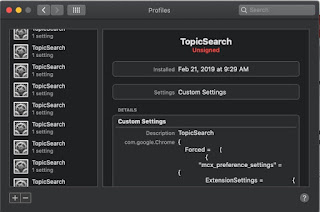


She told me to press "-" to remove them first. Then She told to get a tool to remove it from my Mac. The tool is from malwarebytes.com. That's another surprise for me, using third party app to kill malware. I was hesitated, but I followed her suggestion.

I downloaded the installation package from malwarebytes.com, installed it, then opened it. She told me to scan first. TopicSearch was found in system library. Final step was to remove it. If I was convinced my 1-800 number is correct, I would not do that.

After I restarted my Mac again. I gave copy/paste a try in Notes app. Finally, it was working. The problem was resolved!

"Thank you very much, your Apple support is super!" I finally told her. She smiled.

My Understanding of iCloud Continuity


After everything is working between my iPhone and new MBP. To my surprise, my MBA also keeps working iCloud. I tried to copy of an image in MBA, and I could paste it in my MBP and iPhone!

Based on this experience, my initial understanding of iCloud Continuity was not correct. It is actually not pairing of iPhone and another device such as Mac. It is the continuity among all iCloud based devices.

I think that initially I configured the continuity feature in both iPhone and MBA. Somehow, my when I later added my MBP, the cached configuration did not pick the new device automatically. As Apple helper did, I had to sign out iCloud from my iPhone and sign in again. All devices I set up in my iCloud them are recognized.

It is really cool to see iCloud continuity working among all Apple devices.

References


Apple Support Line in my iOS app. I made a record by a tap in my app with following note:


I saved all my Apple related stories, activities & events in TapToCount-3W app. It makes me easy to recall and find contact information.

Malwarebytes: How to install Malwarebytes

Wednesday, October 23, 2019

iCloud Unknown Error

Recently I updated my Mac OS to Catalina when I got MacBook Pro 2017. Initially, I transferred my OS and data by using Time Machine. Then updated OS from Mojave to Catalina.

The first thing I realize was iCloud error: I could not make connection to my iCloud. The error message is "An unknown error occurred".

I tried to search for solutions on web. I could not find a good way to resolve it. I tried to ask Apple on-line help. They could not resolve it neither. At the end of the help, an senior manager asked to reinstall Mac OS by press Command + R key during restart. It took long time, about 2 hours to reinstall OS. Still I had the same issue after OS update.

The issue looks like something wrong within my user account and OS. It did not reach out to iCould service. I verified my iCloud in Safari, and it works fine.

Finally, I found a suggestion from an article on web (actually, the solutions in the article do not work, and only one in the comments is working). It recommends to clean my keychain folder. I was hesitant to take this strategy since I was worried about I could lose all my password and certificate settings. I spent several days already and with no luck. I decided to give it a try.

Here is the keychain folder I have to clean:

~/Library/Keychains/

After clean up, I did not see this message again. It took very long time complete the setup. Fortunately, I had my keychain in iCloud. After the process, my most passwords are recovered from my keychain in iCloud.

References


Saturday, November 3, 2018

Clean Installation of macOS Mojave

I have MacBook Air-13 Early 2014 model. I did update to Mojave on Oct 22, after downloading the OS from App Store. The update was very straightforward. However, after several days my Mac lost Internet connection. It was really frustrating with no connections to outside.

The following is my story of how to get my Mac Mojave back to normal.

Back to Previous OS


Fortunately I had TM backup before my update. I restored my Mac to previous OS High Sierra as first step. Then I repeated updating to Mojave again. This time before rebooting, I stoped the update process (force to kill the update process from Apple icon->Force Quit).

I remember that I made bootable USB disk before. I decided to boot from another bootable USB to make a clean installation. I followed the advice from an article to make a bootable OS USB as in references. Actually I think this step may not be required. It may be good to make one for emergency or installation to other Macs easier.

Clean Installation


The next step is to reboot. While it is rebooting, hold on cmd+R keys till you see Apple logo. After seconds, a menu of options is displayed. Choose "Disk Utility" to erase my Mac HD. This will guaranty an installation to a clean Mac. Create an admin user during installation.

Migration Assistant


When it is done, login to admin and run Migration Assistant. This app provides options to migrate accounts, Applications, and documents back from TM. In the option list, uncheck Computer and Network settings.

With above steps, now my Mac is back alive, and all my apps, accounts and documents to a new Mojave. So far so good. I hope this clean installation will be fine.

By the way, I went to local Apple Store to get advice yesterday. I explained my situation and strategy of a clean installation, and they agreed this way. Since the process took very long time: back up to TM again with latest documents(specially my Xcode source codes), installation, and lastly migration, I had to go home to finish the whole process. During this process, I got Apple Support call twice to confirm my restoration fine. Even though Mojave release is really not a solid package, I had to thank Apple support stuff for their effort and help.

References


Saturday, April 5, 2014

File size feature in Preview is back!

Recently I noticed the the missing feature of file size in Preview is back! I noticed this missing feature when I updated my OS to Lion. I relied on this feature to decide which image size is smaller, png or jpg. When this feature was removed from Lion, I was so disappointed. I had to find other ways to compare file size difference between png and jpg.

I posted my request to Apple Discussion Forum. I remember that one WWDC encouraged users to post their questions to the forum and Apple is watching for discussions. I think that the roll-back of this feature may be related to my post. That's awesome!

References


Tuesday, January 29, 2013

iMac 27 Power Supply Failure

I found my iMac 27 dead after I came back from my 3 week trip to China. I turned power off before I left. When I tried to turn on my iMac 27 as I came back, the screen stays black, nothing happening. I made an appointment with Apple Help Desk. I had to leave my Mac there since a support staff could not tell what's wrong at that time. He told me two possibilities: one is power supply and another is logic board.

Fortunately, after three days I got email from Apple store my Mad ready for pick up. It was power supply issue. I told them if it is the logic board issue, contact me first. To repair or replay logic board, it would cost me about $500 or more. I was lucky. The part of PS is $69.00, and the labour is $39.00. I was told that the labour cost was reduced recently. It was $100+ before.

I am planning to update my iMac 27 so that I will get at least one year warranty. This time, I think, I'll get extended warranty with three year coverage and phone support.

Saturday, March 3, 2012

Kernel Panic

System panic or Kernel panic is a special issue in Mac. When it occurs, a screen curtain rolls down quickly like a transparent film blocking the whole screen. After the curtain is down, you cannot interact with Mac OS any more. There is no way you can save anything you have done. Therefore, it is extremely frustrating during the time you have lots of work done but not saved. Fortunately, most of time you can get back to normal OS after power down and up again.

I had this issue several times in my previous iMac 27 with Snow Leopard. Recently the kernel panic came back twice again in the past month. I remembered that I called Apple support line about this issue. I think that we spent about more than half hour to figure out any issue. Eventually, I was told that I had to reinstall my OS. After the re-installation of OS, the issue seems gone for a while. That's what I can remember about the issue.

The following screen actually is the one I had long time ago. There was no way to take screen shot, so I had to use my iPhone to take a picture. Today I saw this familiar one again. I decided to to re-intall my Lion OS.


Reinstall Mac OS Steps


Power off my Mac and restart it. When the power is up, hold command+R key till the screen is back.

Select Reinstall Mac OS. This time is for Lion:


Not sure if it did download Mac OS again to not, but it only take about 24 minute time:


Then, the Mac restarted. The next screen is to install Mac OS. This process took about 35 minutes.


When the reinstallation is finished, my Mac is back. All the programs and documents are still as same as before. I hope this reinstallation will keep the kernel panic away.

Reference

Sunday, December 18, 2011

Apple Support Story

Yesterday I purchased iPhone 4S, 64G white model. It is a beautiful device.  However, I soon realized there is one issue: iPhone does not show in my iTunes. I have so many apps in my iTunes for my previous iPhone 4, therefore, I do need to use iTunes to sync my previous iOS contents back to this new device.

Last night, I tried to google for solution, but with no luck. It looks like a common issue, but all the suggestions would not work for my case. I restarted my iMac 27 and restarted my iPhone. Still my iPhone is not in my iTunes.

Today is Sunday. I was not sure if Apple support was available or not. I dialed 1-800-MyApple anyway. Apple support was available. That's a good news. It took about 10+ minutes to get a support person on line. I spent 20 to talk with him.  He verified my iTunes and Mac OS versions.  He also told me to enable iTunes preference: Device section with Prevent iPods, iPhones, and iPads form syncing automatically enabled.  Still there was no luck to show my iPhone.

He transferred me to a senior special list on this issue. It took about another 10 minutes to get available person. Then we went through several times reboot with safe mode, hold on shift key while rebooting. He also instructed me to repair disk permissions from rescue HD after reboot with option key. Still no luck.  During the initial time, he also asked me if I connected my iPhones through USB hub or if there are any other USB devices. I cleared all those issues.

Then I asked my what are in my Macintosh HD's Library\StartupItems. That's something I did not know before. I found two items:

  • Privoxy
  • VistualBox
He recommended me to move those to Desktop or remote them if I don't need them.  I removed them. Still the problem existed.  He then sent me a file of "Capture Data.app.zip", which is an app to capture some disk log files for Apple engineers to analyze what may cause conflict or block iPhone display.  When I started the app, there were several options to select.  He was not sure what to select.

Finally, during the time I repairing my disk permissions, He told me take a break and he would call me back in minutes.  It had been over 1.5 hours passed. During this break, I grasped some food and drinks.  Soon he called me back.  Instead of capturing system log files, he suggested me to reinstalled iTunes from Apple web page.

I downloaded iTunes from the web. During the installation, I asked him if I should uninstall it first. He told me that iTunes is part of Mac OS application and it cannot be uninstalled.  Therefore, there is no need to uninstall iTunes.

I run the iTunes.dmg after downloading. I followed the instruction to install the app. After the installation, he told me to quit iTunes first and unplug my iPhone. Then start iTunes.  This time my iPhone is displayed in Devices on the left panel.  You got it finally! he said. What a relief from him, I can tell from his voice.

After the installation, I saw this nice end-thank-you screen:


It has been over 2 hours for my support case. It is actually not my iPhone's issue. It was my computer. However, my Mac just past 90 days telephone support warranty.  He did recommend me to get extended 3 year warranty.  

From this case, I realize that this warranty is actually great deal.  You have to pay for your get.  With extended 3 year telephone support, I think it'll save me a lot in terms of time and trouble to get my computer to local Apple store. Just image this case, how much Apple has to pay for support staff over hours on my one case.  The fee is basically break even for Apple to this type of service.

After my vacation back from China, I am sure to get the telephone support case.


Monday, October 25, 2010

Disk Utility: Repair Disk

Today I found my iMac 24 has disk linkage issues when I tried to use OnyX to clean my Internet cache and cookies. This is the first time I have seen this problem. I know I can use Disk Utility to fix the problem. I gave it a try.

The first thing I did was to use the tool of Disk Utility (which can be found in Spotlight) to verify the issue. Click the Verify button to start checking:


It did report the problem. After the problem was identified, a prompt dialog was displayed with instructions to fix the issue. I remember that it says to start from the OS installation disk and choose Disk Utility to fix the issue. Coincidentally, I went to the local Apple store to ask the same question about my daughter's MacBook Pro (she had memory failure, none Apple memory). Her laptop has disk issue but she has no time to fix it. I tried to confirm to fix the issue by using Disk Utility tool. The genius guy told me to use the tool from the installation disk, not from the OS tool on HD.

BOOT FROM THE OS INSTALLATION DISK

It took me a while to reboot my Mac from the installation disk. I tried to insert the disk and then restart. It did not start from the disk. Soon I realized that when I put the disk in, there is restart button in the OS installation app. First click on the Utilities... button:


and then click on Restart button:


This made the boot from the installation disk!

NOTE: I later found out that there is one option available from System Preference: Startup Disk. You can select the startup disk from this option. If you place the OS Installation CD into the CD driver, you should see the disk there and make the selection:


FIND DISK TOOL FROM UTILITIES MENU

After that, I saw installation window displayed (I could not take any snapshots). To start the Disk Utility tool, select menu Utilities and then Disk... The instruction is also explained in the Disk Utility tool (see above). Note: there is nothing in the installation window to tell you where to find the Disk tool. It is in the top menu's drop-down!

The repair went smoothly and the problem was fixed. After that, I verified the disk again. It was OK.

I tried the same step to boot from the installation disk on my iMac27. I could not start from the disk. This is another problem. I tried many times. The Apple logo in while screen stays there forever. I think I have a different problem. Even my HD is OK, but why not I cannot start it from the disk. I set up a genius appointment with the Apple store, this Saturday. I'll update the result.

NOTE: I realized two days later after the time when I wrote this blog that I actually have two sets of OS Installation CD. I then tried to use another set OS 10.6.2 disk. Reboot from this disk works fine. Not sure if I have to use the original disk to boot or not.

I have another two sets of OS disks. I tried them and only one installation disk works. It seems that not any boot disk work with iMac.

DISK PERMISSIONS

Another issue I have is the disk permissions. When I run it from Disk Utility tool, I got some messages about my disk permissions. For example the following snapshot is the one I just run today:


Click on Log, all the log messages are displayed in another window:

**********
2010-10-30 09:05:57 -0600: Disk Utility started.

2010-10-30 09:08:09 -0600: Verify permissions for “10.6.1 boot”
2010-10-30 09:08:31 -0600: Permissions differ on "System/Library/Frameworks/JavaVM.framework/Versions/1.6.0/Classes/jconsole.jar", should be -rw-r--r-- , they are lrwxr-xr-x .
2010-10-30 09:08:31 -0600: User differs on "System/Library/Frameworks/JavaVM.framework/Versions/1.6.0/Home/lib", should be 95, user is 0.
2010-10-30 09:08:31 -0600: User differs on "System/Library/Frameworks/JavaVM.framework/Versions/1.6.0/Libraries", should be 95, user is 0.
2010-10-30 09:09:26 -0600: Permissions differ on "System/Library/Frameworks/JavaVM.framework/Versions/1.6.0/Resources/JavaPluginCocoa.bundle/Contents/Resources/Java/deploy.jar", should be -rw-r--r-- , they are lrwxr-xr-x .
2010-10-30 09:09:26 -0600: Permissions differ on "System/Library/Frameworks/JavaVM.framework/Versions/1.6.0/Resources/JavaPluginCocoa.bundle/Contents/Resources/Java/libdeploy.jnilib", should be -rwxr-xr-x , they are lrwxr-xr-x .
2010-10-30 09:09:42 -0600: ACL found but not expected on "private/etc/apache2/httpd.conf".
2010-10-30 09:09:42 -0600: ACL found but not expected on "private/etc/apache2/users".
2010-10-30 09:09:51 -0600: ACL found but not expected on "Library/Preferences/Audio".
2010-10-30 09:09:51 -0600: ACL found but not expected on "Library/Preferences/com.apple.alf.plist".
2010-10-30 09:09:52 -0600: ACL found but not expected on "Library/Scripts/Folder Action Scripts/Image - Duplicate as JPEG.scpt".
2010-10-30 09:10:04 -0600: ACL found but not expected on "System/Library/Keychains/X509Anchors".
2010-10-30 09:10:19 -0600: Warning: SUID file "System/Library/PrivateFrameworks/Admin.framework/Versions/A/Resources/readconfig" has been modified and will not be repaired.
2010-10-30 09:10:19 -0600: Warning: SUID file "System/Library/PrivateFrameworks/Admin.framework/Versions/A/Resources/writeconfig" has been modified and will not be repaired.
2010-10-30 09:10:21 -0600: ACL found but not expected on "private/etc/hostconfig".
2010-10-30 09:10:21 -0600: ACL found but not expected on "private/etc/master.passwd".
2010-10-30 09:10:21 -0600: ACL found but not expected on "private/etc/passwd".
2010-10-30 09:10:21 -0600: ACL found but not expected on "private/var/yp/binding".
2010-10-30 09:10:23 -0600:
2010-10-30 09:10:23 -0600: Permissions verification complete
2010-10-30 09:10:23 -0600:
2010-10-30 09:10:23 -0600:

I tried to verify permissions and repair permissions from boot disk and my HD. Still it looks like that I cannot resolve the permission issue. I don't experience any issues when I use my iMac. Not sure how I can resolve the disk permission issue.

UPDATE FROM GENIUS BAR

I came back from my visit to local Apple store's genius bar. I was told that I do need to use the original Mac OS disk to boot. It will not not boot from other disks. This is what I expected. In case I lose my original disk, I have to call Apple support line to get a disk. The tech person told me that it is strongly recommended to get Apple Care plan since I am off my 90 days warranty with call support.

In terms of disk permission, I told him that I tried to repair the disk permission problems from local and disk reboot. None of those resolved the disk permission issues, which stays there. I was told that it used to be problem for previous OS such as tiger. As long as I don't experience any problems, I should not worry about the issue. I might get advice from Apple Care support if I to phone in.

Thursday, April 29, 2010

Yes, Time Machine is a Must-Have

My iMac 27 was ready for pick up yesterday. I got the message when I got back from work. I did not leave my work phone number when I drop the iMac, but I phoned back last Monday and told the store to phone me at work. The store did not phone me at work and left a message at my home number. It was late and I did not have car. Today this morning there was heavy snow and wind, so I decided to work from home. At the lunch time, I went to the local Apple retail store to get my iMac 27" back.

I checked the iMac at the store. The hard drive was replaced and set back at initial setting. When it was turned on, a welcome screen and music were up. The first thing I did when I was back home was to migrate my time machine back. The job took about 3 hours. All my original settings, applications, movies, photos and data files are back! The only thing I did not backup was my dropbox folder, which I use DropBox cloud service to sync my files up to internet. When I logged in and started the DropBox.app, I was asked to re-connect and set up my local folder as DropBox, just as same way as I set it up. After that, all the files from my internet DropBox account were back to my HD. That's all, very smooth and easy.

I remembered that when I was at the store I saw two senior couple at the genius help desk with their iMac 24. It looked that they knew very little about Mac. The screen was white, the same way as I had before. I hoped that they had time machine to back up everything, files, photos and movies. What a nightmare if they did not.

Yes, time machine is a must-harve for Mac users.

Caution When You Turn TM on!


While I was writing this blog, I got a warning message from my time machine backup:


After I got my TM back to my iMac, I did not give it a thought about the content on TM. I turned TM on from system preference. It looks like that it was just doing a whole new backup appending to the TM. Since it is a TM backup, all the original content are gone, and only the last date one (restored) was kept. The new backup then starts a whole back again. As a result, double spaces are required and my external HD does not have enough space. Here is what I have now on the TM's external HD:


and here is the my TM failure (in system preference):


Therefore, my advise is that when you have your iMac HD replaced and then restored the TM's content, don't rush to turn on TM on the same external HD if you want to keep all the history files. Keep the TM in a safe place, and get another external HD as your new TM.

Saturday, April 24, 2010

Time Machine is a Must-Have

iMac 27 dead. Last night I had some friends over my place. To watch some YouTube shows, I moved my iMac 27" to my kitchen. We had some drinks and enjoyed shows. When I moved the iMac back to my computer room afterward, my iMac was dead. It stayed in the initial white screen with spinning wheel running for ever. I turned it off and on again, nothing help. tried this morning again, the same screen. I actually realized something wrong last night and I booked only one spot the next morning at the local Apple retail store.

The genius person was very nice and had British accent. I told him the story. He turned on the iMac, and it was the same result. He told me that it was the symptom of hard drive failure. "I'll replace the hard drive for you", he said. "Did you back up your hard drive", he asked. I told him that I have an USB external hard drive as a Time machine. "That's good.", he smiled.

"OK. I have no choice." I accepted that, "I also have an iMac 24, from my experience, I did not get Time machine migrated to this machine (27) from my 24 when I purchased this one (27)."

"I can give you step by step instructions of how to do that if you want." he said, "it should be very simple and straightforward, and I don't think there should any problem since your time machine was running against to this one."

"I think I can do it. I'll give it a try", My voice showed a little sign of hesitate.

After he checked status on his computer, he said, "We don't have hard drive in stock right now." He offered one option, "I am sorry we have to keep it in store. I have placed an order. The earliest date from the system may be next Wednesday. Is that OK?"

"OK", I was reluctant, but I had no choice. That's my story of my dead iMac 27. I am expecting to get it back next week.

I don't worry about any applications on 27, but I have many important data files and an iPhone project I have been working on. If I cannot get my time machine back to the new hard drive, that would be disaster for me. Fortunately I have had my iMac 27 connected with my time machine all the time, till the last moment when it was dead. "This would provide me one experience to see how the time machine works", I thought.

This afternoon, I had an idea: can I try my time machine on my iMac 24"? if I can get files and the source codes of my iPhone project back to iMac 24? The iMac 24 was the only one computer I had for the time. If I could get the files back, I could continue to work on my project. That's really good idea. I plugged the time machine to my 24's USB port. The drive appeared on the desktop. My Time Machine.app was not running. I don't think it is good idea to get it running. The content of the USB drive is for my iMac 27.

However, I can browse the content of the drive in Finder. To my surprise, I see all the folders by time in chronic order:


Here is what I have in the latest date folder: my 27's hard drive:


and all the folders and files under the users/[myuser]:


What a life saving feature! I dragged some files and folders back to my iMac 24"s HD, and my iPhone project was back. Even without directly restoring all the content back to an iMac, I can still browse files directly and restore files manually. That's already good enough for me. Time Machine is a must-have item for Mac users!

It would be nice if I can restore the time machine back to my iMac 27 when it is back. Wait and see.

Wednesday, December 31, 2008

Apple in China

Now I am in China for 3 week vacation. I have chance to visit local computer stores. It is really hard to see Apple computers on the market. Actually, I have not seen a Mac computer at most. It is still Windows dominate market.

I don't know who to blame, Apple or customers. I think it should be Apple. I talked to most people and ask them about Mac. They all say that Apple computer is too expensive and there is no competition at all. PCs are everywhere and there are a lots of hardware and software available.

On the web, I can find some Apple fans and information about Apple. There are still some Apple fans in China. It may take some time for Apple to enter Chinese market. I checked my iMac when I was in Canada. The power supply does support 220V, which means I could use it if I brought it to China.

As far as I know, iPhone is not in China for the time being. I could not find iTouch neither. I remembered that when I visited Apple store with location to China, there are very few music and applications available, comparing to US and Canadian stores.

How Apple enter to Chinese market is still unknown. I think it is very tough market for Apple.

Saturday, November 22, 2008

A Dojo Widget not Working in Safari

I have tried to learn Dojo and Dijit (Dojo widget) recently. One widget, Rating by mindtrove's blog is a simple one as rating control.

The problem I encountered is that the keys are not working in Safari. I tried it on Windows IE and Firefox (both Windows and Mac), and it works fine. The problem, as far as I can get, is that Safari does not allow most HTML DOM objects to receive focus. Only button and text box are. Not sure if there is any way to change Safari's default behavior.

The widget only respond to mouse click. As a result, if you want to clear rating, you have to refresh the page. I think I read something about Mac. It is a mouse driven OS, and everything is UI with mouse interaction. However, in cases like this one, key events would be much desirable. Not sure if there is way to configure Safari's behavior, hope this "bug" would be fixed soon.