
Wednesday, October 24, 2012

iMac 21 HD Repaire Recall

Today I received one letter from from Apple by email. It is about iMac 21 sold between Oct 2009 to July 2011. The letter indicates that my iMac's HD may fail anytime and Apple is going to provide free replacement. I checked my iMac 21, and found that I have a blog about this model. Actually, the date is on Aug 16, 2011, about one month after the time range.

I think that I saw similar news on web before, something about iMac HD recall. Unexpectedly, my iMac is on the list. I have registered all my iMacs when I got them. Apple has my past purchase record.

The following is the letter.


Dear iMac owner,

Apple has determined that certain 1TB Seagate hard drives used in 21.5-inchand 27-inch iMac systems may fail. These systems were sold between October 2009 and July 2011.

Our records show that you have an iMac with an affected 1TB Seagate hard drive. Apple will replace your hard drive with a new one, free of charge, under the iMac 1TB Seagate Hard Drive Replacement Program.

Please choose one of the following options to get a replacement hard drive.

  • Apple Retail Store - Set up an appointment with a Genius.
  • Apple Authorized Service Provider - Find one here.
  • Apple Technical Support - Contact us for local service options.

Apple recommends replacing your affected hard drive as soon as possible. Before you go in for service, please back up your data. Learn more about backup options.

Additional Information

You will need to have the original Mac OS installation discs that were shipped with your iMac in order to reinstall your operating system, other applications, and any backed up data after your hard drive is replaced.

This worldwide Apple program does not extend the standard warranty coverage of the iMac.

Apple will replace affected 1TB Seagate hard drives, free of charge, for three years from your iMac’s original date of purchase or until April 12, 2013, whichever provides longer coverage for you. Apple will continue to evaluate service data and provide extensions to this program as needed.

We apologize for any inconvenience.

Sincerely,

Apple Inc.

I am going to make an appointment and get my iMac HD replaced. Stay tuned.

UPDATE: Last Sunday I went to Market Mall Apple Store. I was told that my iMac is not in the re-call list. It is the iMac 21" 1T HD. My is 500GB. I was told that my iMac is fine.

Referrence


Sunday, October 21, 2012

Update: Java for OS 2012-006 1.0

This update is for Java security update. The update is from App Store.


The following is the comparison of spaces used before and after of the updates:

Command: df -lakUsed(Kilobytes in 1024-blocks)
Before...945,072
After...874,784
Difference (A-B)-70,288

Sunday, September 23, 2012

Update: iPhoto 9.4 and Xcode 4.5

I just finished two more updates: iPhoto 9.4 and Xcode 4.5. Those updates are all related to the new iOS 6. I installed iPhoto first. After that, I restarted my Mac and then installed Xcode. The Xcode took a long time do finish. I saw first download is 1.32GB and next one is 1.61GB. Not sure why there were two downloads.


The following is the comparison of spaces used before and after of the updates:

Command: df -lakUsed(Kilobytes in 1024-blocks)
Before...6,430,044
iPhoto...6,195,524
Difference (iPhoto-B)-234,520
Xcode...4,666,576
Difference (Xcode-iPhoto)-1,528,948

OS 10.8.2 Update

I got this update last week. This is the major update since Mountain Lion released. Now all the updates are through Mac Apple Store. All those updates have not be automatically done. I still have to run update in the store.


The following is the comparison of spaces used before and after of the updates:

Command: df -lakUsed(Kilobytes in 1024-blocks)
Before...103,764
After...679,348
Difference (A-B)575,584

Monday, September 10, 2012

Mac Network Issue

Recently, one of my friends asked me to help her to resolve her MacBook Pro issue. She brought in a MBP from oversea. It was working fine when she was oversea. Then it stopped connecting to internet or any network devices through either Ethernet or Wifi when she was back to Canada. She was using local mobile network router when she was oversea. In Canada, she uses Airport Extreme Base Station.
I tried to use System Preference to reset network and tried to reset Airport by Airport Utility. The Wifi was detected, but the MBP could not connect to Internet.  The Ethernet cable was connected but it could not make any network connections. I also tried to reboot the system. It was dead locked.

The Solution


Then I went to web to google solutions. I was lucky to find a solution in short time. Here I repeat it again for future reference.

Delete SystemConfiguration folder in root preferences
  1. Open Finder.
  2. Press Command+Shift+G shortcut key.
  3. It will open a dialog of "Go to the folder". Type in: "/Library/Preferences/SystemConfiguration" (without quotes).
  4. The Folder will open the folder of SystemConfiguration.
  5. Drag this folder to your desktop.
This actually copies the folder to Desktop as the original backup. If the following steps are successful, this folder on Desktop can be moved to trash.

Remove Airport entries in Keychain
  1. Press Command+space to open Spotlight. 
  2. Type in: "Keychain Access" (you may see it while typing. No quotes).
  3. Select Keychain Access and hit Enter key.
  4. Keychain Access app is opened.
  5. Select your default keychain. ("login" is the default if you have not changed).
  6. In the spotlight search area, type in: "airport" (no quotes)
  7. A list of entries of Airport... is displayed.
  8. Select one and press ‘delete’ on your keyboard.
  9. Repeat above step to delete all of them.
  10. Select "System" from the list of Keychains.
  11. Repeat steps 6 to 9 above.
Restart Your Mac

Restart your Mac or MBP. Now you should be able to verify your network connection from System Preference. If the Ethernet is in green, that explains your local network is OK. Try Safari to test your Internet connections.

Reference

Wednesday, August 29, 2012

Mountain Lion: Kernel Panic?

I think I got Kernel Panic since I updated my Mac OS to 10.8. It happened twice. When it happens, the screen suddenly changed into a grey screen with a message in 6 languages. Within seconds, the Mac reboots atomically.

I did not catch the message first time. The second time it was happened in the morning. I logged on to my Mac. Suddenly, the KP happened. I took my iPhone to take a phone.


The screen looks very different from the one I had before. I think this may be the Mountain Lion KP.

Reference


Monday, August 27, 2012

Update: Mountain Lion 10.8.1

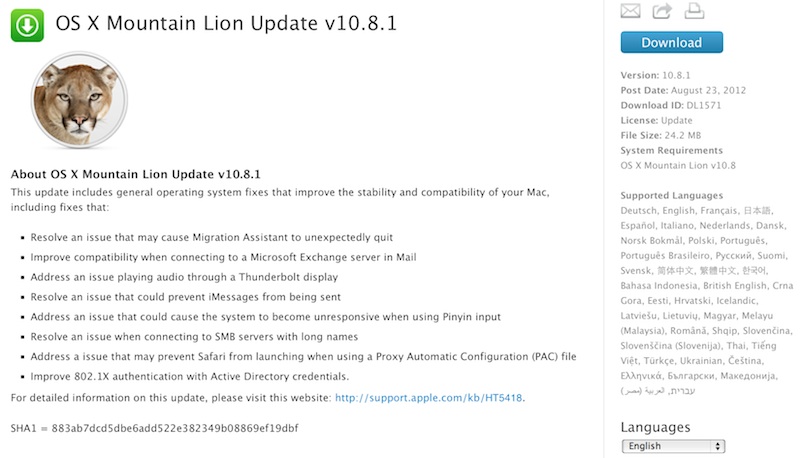
Mountain Lion update 10.8.1 was released on Aug 23, 2012. I did not rush to update my ML. Two days ago I noticed my App Store had several updates, 10.8.1 was one of them. I did not click on update right away. I double clicked on the update item, then I saw a pop up option with "Hide". I clicked on Hide. Suddenly all the update were gone.

I could not find a way to bring hidden updates back. I tried to quit App Store, then reboot my Mac. Still I could not see updates. I thought it may be back later. Today, I still did not see it. I found a way to unhide items from my accounts in App Store. I only got the other two items back, not the 10.8.1. I checked my Mac. It was 10.8.

Then I decided to search for the web if some one else could have similar issue. Soon I found the update on Apple's web page. Here you go, I can get the update from Apple web page. I am so fortunate that this update is available from Apple. Not sure if other updates would be hosted on Apple download page. I doubt if there were.


Since I did not get the update directly from App Store, I don't know how it works. Should that be automatically in a silent mode? Should the download be deleted after update?

The download version is a normal package installation. The package was saved to my Download folder. I had to click on the package of OSXUpd10.8.1.dmg, with 24.2MB in size. The package in exploded to pkg. Click on the pkg, the installation wizard is displayed.

I thought ML's update feature would be done in evenings automatically. So far, all the updates I found from App Store require my interaction to complete. Not sure if there is any thing I miss in the system config. Anyway, I still have chance to compare the disk space difference between before and after.

The following is the comparison of spaces used before and after of the updates:

Command: df -lakUsed(Kilobytes in 1024-blocks)
Before...298,440
After...460,416
Difference (A-B)161,976

References