Thursday, December 13, 2012

Updates: Epson Printer Drive, Digital Camera RAW, and iTunes 11.0.1

The Epson Printer drive update was released two days ago. This printer driver is based on my purchased printer. Actually, I have not used this printer for more than one year. Most of time, I just print as PDF file and send out as attachments or saved on my google docs.


Today I got two updates: Digital Camera RAW Compatibility Update 4.03, which is for my iPhone 11. Another one is the first update since iTunes 11 released.


The following is the comparison of spaces used before and after of the updates:

Command: df -lakUsed(Kilobytes in 1024-blocks)
Before EP...2,016
After EP...3,812
Difference (A-B)1,796
Before DC...349,172
After DC...343,480
Difference (A_DC-B_DC)-5,692
After iTunes...140,296
Difference (A_iTunes - A_DC)-203,184
Capacity43%

Friday, December 7, 2012

Update: iWork 9.3

This is iWork 9.3 update. According to its description, this update is for iSO 1.7 apps. I had purchased iWork (Pages, Numbers and Keynote) with OS package long time ago. I have not upgrade my iWork apps individually afterwards. Not sure this update is related to the purchase package.


The following is the comparison of spaces used before and after of the updates:

Command: df -lakUsed(Kilobytes in 1024-blocks)
Before...4,064,368
After...3,588,100
Difference (A-B)-476,268
Capacity43%

Sunday, December 2, 2012

Update: iTunes 11

iTunes 11 was finally released last Friday (Nov 30, 2012). I did not update right away, because I was not sure if podcasts are still available as integrated part of iTunes. Soon I got confirmed that podcasts are still there. I did update immediately. At first glance, the iTunes UI looks much simpler. However, since I am used to the previous UI, I really miss some views, such as icon views. Maybe it will take time to get used to.

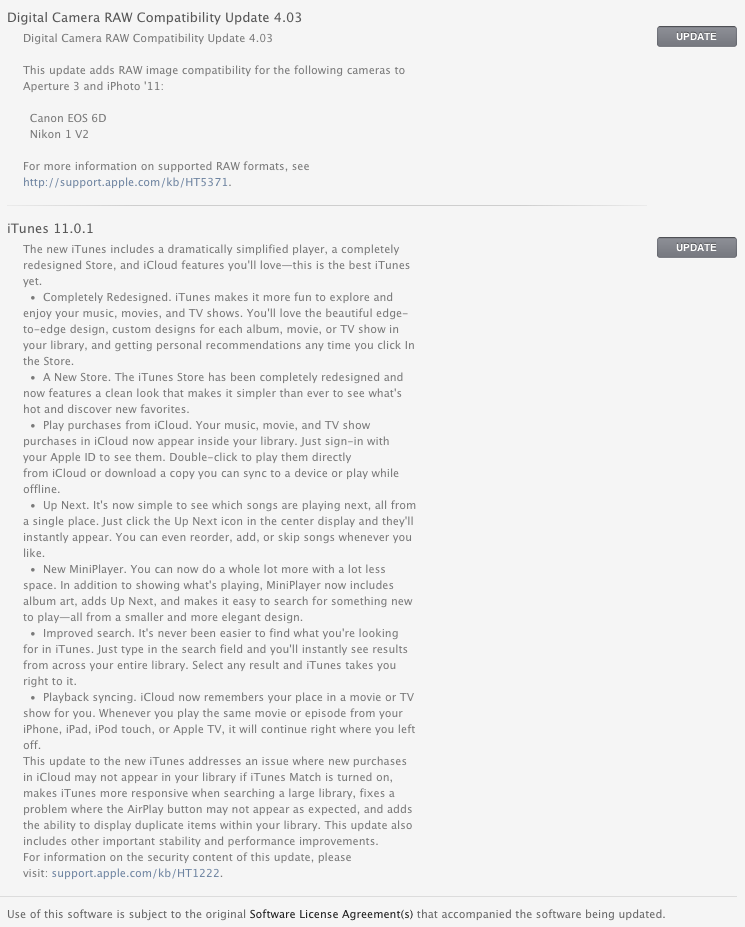
Along with this update, there is update for Digital Camera RAW Compatibility. Here is the information for this update:


And here is the long list of iTunes 11 update:


The following is the comparison of spaces used before and after of the updates:

Command: df -lakUsed(Kilobytes in 1024-blocks)
Before...3,002,328
After Digital......2,989,392
Difference (A-B)-12,936
After iTunes...2,976,144
Difference (Ad-Ai)-13,248
Used after updates412,976,144
Capacity43%

Tuesday, November 27, 2012

Remove Stuck Installed Apps

Recently I was struggling with stuck installed app in my App Store update area. The app is DropCopy, a free app I downloaded long time ago. When I saw obviously App Store has a badge with number 1, I tough I had update. I click on App Store and in Update tab, I saw a stuck installed app DropCopy.

There seems there is no way to get rid of it. Nothing I could find a way to uninstall it. In the Purchased tab, I found this app as Installed. Right click on it, I could hide it. But still the red 1 badge was still hanging there.


It is quick annoying.

Today I finally find a way to vanish the badge 1. It is quite simple. I started with with the uninstallation. In Mac, to remove an app is very simple: find it and trash it.

I bring my SpotLight by pressing command + space key. Type "DropCopy". Then hold command key and click on it. The find is opened. To my surprise, the DropCopy is in the folder of "MyApplication" under Applications!

I moved "MyApplication" from root to "Applications". I had a reason to keep all the apps I found from web or none-Apple places within "MyApplication". That was good idea until I realized that I could not restore it back from TimeMachine back if I want only one account and applications restored. That's why I moved "MyApplication" to Applications. I think that I might have a sticky mouse to moved DropCopy to "MyApplication" without my notice. As a result, I think, it caused this stuck app in App Store.

Back to my solution to fix the issue, I removed the app DropCopy. Whala! The badge gone right away. Then I went to Purchased area, I can download it from there again.


Saturday, November 10, 2012

Update: Safari 6.0.2, iPhoto 9.4.2 and Xcode 4.5 Tip: Unhidden not updated apps

I think that now I understand how Mac Software update works. Mac OS, Mountain Lion, introduces a new feature of software auto-upate. I thought that it would do updates most cases in evenings automatically. Since I got my OS updates, I find out that I still have to do update manually. The big difference is that before ML, I got notification about updates. Then I click on update. The update will start to download packages, then continue to proceed the update; and after ML, all the updates are through App Store. I still get prompt for updates. It does not do updates automatically.

This the new settings for Software Update in System Preference:

The download process can be set automatically. Within the auto-check-update, there is one option for install system data files and security updates. I though all the updates would be done automatically with this option.

I keep watching for the updates. There still may updates not done automatically. Today I pay attention to how updates done in App Store. When I click on update, for example, Safari 6.0.2, there is no download in progress bar. It just starts to proceed updates. The download was done long time ago, maybe last night. This matches to my settings. However, I still have to accept updates, and let them go.

One thing I noticed in updates and purchase area in App Store is that if you right click on one item, there is option to hide it. When an item is in hidden, you will not see it any more. The reference has a link to Apple web site about how to enable or disable this feature.

The following is the snapshot of today's update:


The change of update makes my space calculation difficult. I cannot do more close calculation of space before and after, since the download is done way before I get notice. This does have impact on my space calculation. So far I don't know how I can do a better calculation. I think the used space before download already takes account of download packages, while after space may not include packages removed after updates. For the time being, I just keep the same way I did before. I'll add two more rows at the end: the total used space after updates, and capacity.

The following is the comparison of spaces used before and after of the updates:

Command: df -lakUsed(Kilobytes in 1024-blocks)
Before...304,812
After Safari...267,504
Difference (A-B)-37,308
After iPhoto...185,496
Difference (A-As)-82,008
After Xcode...79,796
Difference (A-Ai)-105,700
Used after updates407,079,796
Capacity42%

Reference

Friday, November 2, 2012

Force-deleting stubborn or problematic files

Sometimes I encounter a problem to delete files. A warning message dialog is displayed about the file is in use. If I knew which app uses the file, that's easy. Quit the app would release the file. However, in case I could not figure out which one occupies the file. I have to reboot my Mac to delete file. It is very annoying.

Today I found a way to delete the problematic file. First move the file to trash. Then hold on Command key and click on Trash. Select Secure Empty Trash (SET). This resolved my problem today at least. The option of SET takes long time to clean files if there are a lots of files. Therefore, my recommendation is to empty trash first to get rid of all the none-problematic files first.

Reference


Thursday, November 1, 2012

Numeric Keys Not Working

I like to use Mac long keyboard with numeric keys on the right. Recently, I realize that my keyboard's numeric keys not working. I was puzzled. I thought it may be that I had kept my Mac running for too long time (weeks or months). After I reboot my iMac, the numeric keys are back to live. However, this issue comes back again for several times.

It is quite annoying. I like to use numeric to input numbers. Today I spent some time to investigate the issue. I noticed that other keys on the numeric area are working, such as +, - *, and /. Just numeric keys were not responding. Maybe my keyboard numeric keys are dead? All of them?

I thought that there may not be many people using keyboard with numeric keys, hence there may not be solutions from Web. Anyway, I tried to google for solution. To my surprise, this is a common issue and I quickly found a solution. The solution is actually from an article at Apple web site.

According to the article, it is the setting in System Preference. As in the snapshot, the checkbox for Enable Mouse Keys has to be cleared.


Not sure what this feature is. It may be for Apple magic mouse as numeric input? I don't have mouse. I don't like mouse. What I use is a touch based Magic Trackpad.

The article explains that this feature may be enabled by some applications. Now I know how to get my numeric keys back.

Reference