Sunday, December 8, 2019

Watch AppleTV on AppleTV Device

Recently I joined Apple TV subscription by using family sharing. I can watch AppleTV content on my iPhone and Mac computers. However I could not watch the content on my AppleTV device straight through AppleTV app(TV app in short). On my other devices, I can watch TV content when I open TV app since I use the same AppleID with family sharing setting. On my AppleTV device, when I open the TV app, I get prompt to sign in with password for my AppleID. There is no problem to sign in, but I see Trial icon which is not showing on my other devices.

I could mirror or redirect content from my other Apple devices to my big TV screen, but it is painful to watch high resolution TV streaming in this way, always stuck or spinning wheels on screen. My device is 3rd generation one.

After several days trying and investigation, I could not find solution. I decided to get help from Apple. I found Apple support from web. I clicked on call support link from my AppleID page, I was told that Apple support would call me directly. That's new and interesting. Indeed, I got a call from Apple in no time. It was about 8pm on Saturday night.

I explained my issue. The support person actually was not the right one for this issue, but I was forward to multimedia streaming support department.

Solution: Password+Passcode


To cut the story short, the solution is very simple. In the sign in prompt when I open TV app, I was told to type in my AppleID password plus passcode. The passcode can be get from my iPhone. In settings, tap on my name, then Password & Security. Scroll down there is Get Verification Code link to get passcode.

That's very wired and so simple. This requirement is one time. After that, I don't see Trial icon and no need to sign in again. Now I can enjoy my AppleTV content straight from my AppleTV device!

Friday, November 15, 2019

iPhone Backup in Catalina


Before I updated to Mac OS Catalina, I do regular backup of my iPhone through iTunes. Today it is time to back up. Soon I realize iTunes is not working in Catalina! Maybe it is 32bits app.


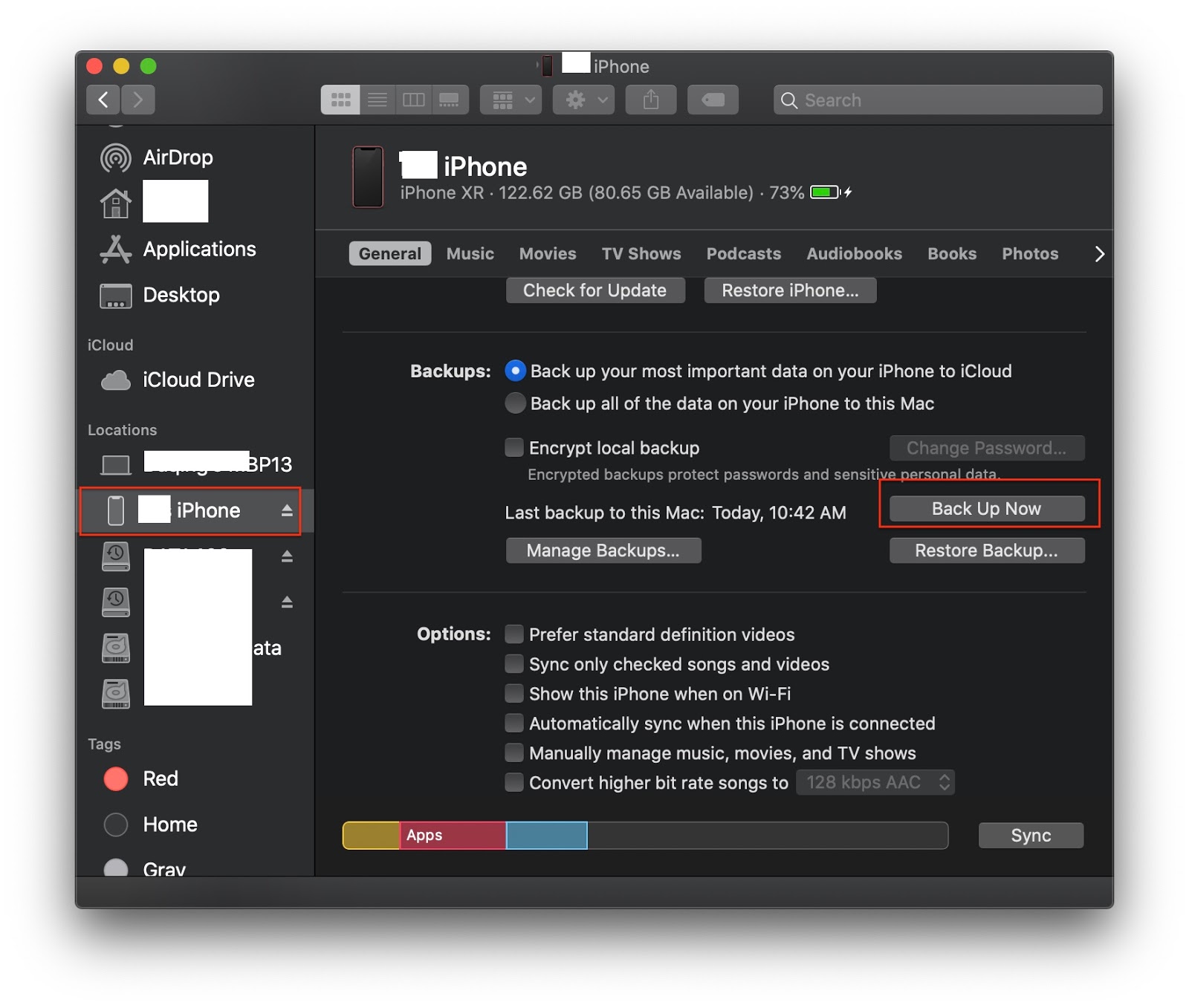
Quickly I find out how to do backup of iPhone in Catalina: using Finder.

Connect iPhone to Mac first. Unlock iPhone and then it will appear on the left panel of Finder. In General tab, more detail information of how to backup iPhone is available.

Thursday, November 14, 2019

iCloud Continuity

One of iCloud Continuity features is copy/paste. I like this very much. I could type in text on my Mac, then make a copy. With this continuity, I could paste text easily on my iPhone.

However, my recent Mac update from MB Air to MB Pro. I could have this feature to work on my new MB Pro. I tried to search for solutions on web but with no luck.

Apple Support


Today, I decided to get help from Apple. All of my Apple devices are out of Apple Care warrantees, MBP is 2017 and iPhone is XR. I thought that my issue is Mac OS update related issue, I may be able to get help from Apple, based on my previous experience from Apple support.

I phoned 1-800 line. Not waiting for long, I got a real person helper. I told him my story and also mentioned that I have turned on Wifi same network and Bluetooth. That saves him time to investigate issues. He put me on hold to search for support information.

It seems that there is no need having Apple Care to get Apple's support. My case is OS ie iCloud service issue. That's really nice service from Apple.

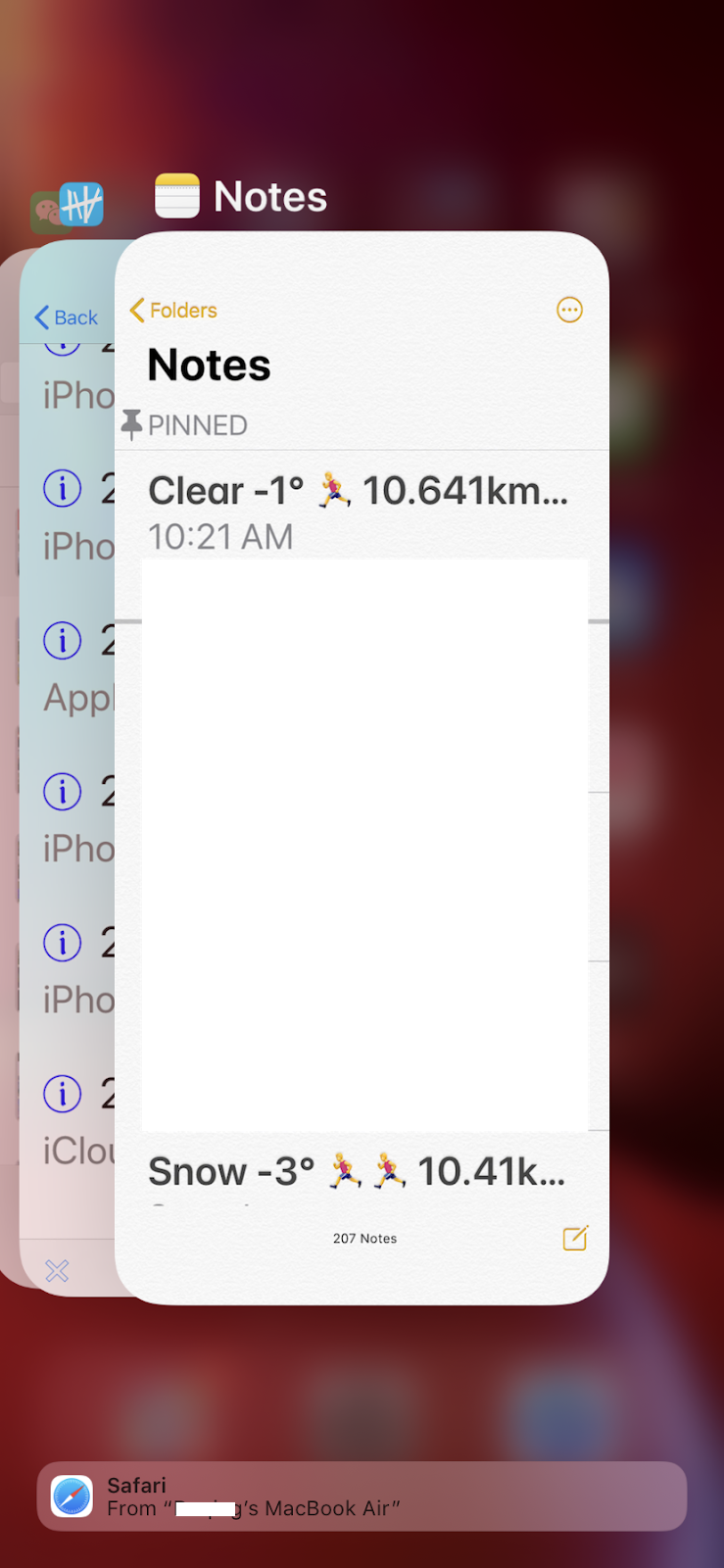
While the waiting time, I tapped my iPhone on bottom and swipe up to get active apps. I noticed that on the bottom, Safari with a message saying to my MBA. I realized that my iCloud might be paired to my iPhone and my previous MBA!


I took my MBA out and turned it on. I tried to copy something text there. Then I got the text pasted on my iPhone. It works, but no my updated MBP.

The helper was back. I told him my findings. I said, it might be my iCloud service is paired between iPhone and MBA. Is there any way to find out this pairing and change it to my MBP? I asked.

To cut story short, he said that it is beyond his knowledge to solve the issue. He has to pass it to senior person to provide solution.

Solution for iCloud Continuity and Universal Clipboard


The second helper was a lady. She remotely accessed to my Mac. Quickly with her investigation and suggestions, I finally get Continuity and Universal Clipboard working!

She asked me to restarted my iPhone and Mac first. I said I tried that, still not working. Then she told me to sign out my iCloud from my iPhone (General | My Apple ID... | Sign Out). Then restart my iPhone, sign in again.

It took a while to get all the data back from iCloud. She told me to log on my MBP. I opened my Notes app. I tried to type something there. Quick I saw the changes are reflected on my iPhone. This part is working.

However, the universal clipboard is not working, still I cannot paste text copied on my Mac.

She continued to investigate my Mac. From System Preferences, in Profiles, she found some malware on my Mac! That's amazing, first time found malware on Mac, from Apple support.
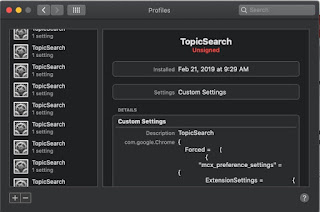


She told me to press "-" to remove them first. Then She told to get a tool to remove it from my Mac. The tool is from malwarebytes.com. That's another surprise for me, using third party app to kill malware. I was hesitated, but I followed her suggestion.

I downloaded the installation package from malwarebytes.com, installed it, then opened it. She told me to scan first. TopicSearch was found in system library. Final step was to remove it. If I was convinced my 1-800 number is correct, I would not do that.

After I restarted my Mac again. I gave copy/paste a try in Notes app. Finally, it was working. The problem was resolved!

"Thank you very much, your Apple support is super!" I finally told her. She smiled.

My Understanding of iCloud Continuity


After everything is working between my iPhone and new MBP. To my surprise, my MBA also keeps working iCloud. I tried to copy of an image in MBA, and I could paste it in my MBP and iPhone!

Based on this experience, my initial understanding of iCloud Continuity was not correct. It is actually not pairing of iPhone and another device such as Mac. It is the continuity among all iCloud based devices.

I think that initially I configured the continuity feature in both iPhone and MBA. Somehow, my when I later added my MBP, the cached configuration did not pick the new device automatically. As Apple helper did, I had to sign out iCloud from my iPhone and sign in again. All devices I set up in my iCloud them are recognized.

It is really cool to see iCloud continuity working among all Apple devices.

References


Apple Support Line in my iOS app. I made a record by a tap in my app with following note:


I saved all my Apple related stories, activities & events in TapToCount-3W app. It makes me easy to recall and find contact information.

Malwarebytes: How to install Malwarebytes

Wednesday, October 23, 2019

iCloud Unknown Error

Recently I updated my Mac OS to Catalina when I got MacBook Pro 2017. Initially, I transferred my OS and data by using Time Machine. Then updated OS from Mojave to Catalina.

The first thing I realize was iCloud error: I could not make connection to my iCloud. The error message is "An unknown error occurred".

I tried to search for solutions on web. I could not find a good way to resolve it. I tried to ask Apple on-line help. They could not resolve it neither. At the end of the help, an senior manager asked to reinstall Mac OS by press Command + R key during restart. It took long time, about 2 hours to reinstall OS. Still I had the same issue after OS update.

The issue looks like something wrong within my user account and OS. It did not reach out to iCould service. I verified my iCloud in Safari, and it works fine.

Finally, I found a suggestion from an article on web (actually, the solutions in the article do not work, and only one in the comments is working). It recommends to clean my keychain folder. I was hesitant to take this strategy since I was worried about I could lose all my password and certificate settings. I spent several days already and with no luck. I decided to give it a try.

Here is the keychain folder I have to clean:

~/Library/Keychains/

After clean up, I did not see this message again. It took very long time complete the setup. Fortunately, I had my keychain in iCloud. After the process, my most passwords are recovered from my keychain in iCloud.

References


Tuesday, February 26, 2019

Open Attachment Winmail.dat in Mail App

This is quite annoying issue. I frequently receive emails from Windows platform with attachment. The attachment file is displayed as Winmail.dat file in Mail on Mac side. The dat extension name cannot be correctly identified on Mac.

Further search on web, I realize that this is a command issue. Today I found a simple solution to get the issue resolved. What I need is an app called TNEF's Enough. This is a free app and now available in App Store.

With this app, open the saved attachment file Winmail.dat. It will reveal the type of file hidden within the dat. Double click will prompt a Window to save the revealed file.


References


Monday, January 28, 2019

Spotlight and File Full Path

I remember that long time ago, I can use Spotlight to make a copy of file/folder's full path, just by pressing cmd+c keys if the text is a file/folder. However, this feature seems not working in resent macOS anymore (High Sierra or Mojave).

Even though, I realize that the spotlight can still reveal full path when cmd key is pressed. This feature is available in High Sierra or Mojave. As seen in the following snapshot.


By the way, above screen shot was hard to make(any screen shootout keys will make the path disappeared). I had to record the section screen first and then to take snapshot from the recorded video.

One interesting thing is that I found a way to get full path! By chance I accidentally pasted my clipboard in Safari's address bar one day. I got the full path. As show in the following snapshot:


That's very interesting finding. There are more places I can get full path. Safari's search bar, Notes app search bar. However, it is not working in Terminal app directly, nor in Finder's search bar. I think Finder's search bar is actually a spotlight.

Anyway, I could not find this solution in web. Maybe this is a undocumented trick in macOS. In this way, file/folder's full path can be obtained indirectly from some app's bars. From there, the path text can be copied as text when it is selected, as for the above example:

/System/Library/CoreServices/Applications/Screen Sharing.app

UPDATE: recently I updated my Mac to macOS Catalina. Unfortunately this feature is not available in this new OS. I could not paste a copy I made in Finder for a file or folder item to Safari's address bar as a full path string.

However, the full path can be obtained in Terminal by cmd+v paste!

Another finding is to jump to a file's location in Finder from Spotlight. For example, type something like "iTunes" in Spotlight. You will see the first item in result list is iTunes - Applications.


Hold Cmd key and double click on this item. You will jump to the file in Finder. From there you can make a copy


and paste it to Terminal to get its full path.


Saturday, November 3, 2018

Clean Installation of macOS Mojave

I have MacBook Air-13 Early 2014 model. I did update to Mojave on Oct 22, after downloading the OS from App Store. The update was very straightforward. However, after several days my Mac lost Internet connection. It was really frustrating with no connections to outside.

The following is my story of how to get my Mac Mojave back to normal.

Back to Previous OS


Fortunately I had TM backup before my update. I restored my Mac to previous OS High Sierra as first step. Then I repeated updating to Mojave again. This time before rebooting, I stoped the update process (force to kill the update process from Apple icon->Force Quit).

I remember that I made bootable USB disk before. I decided to boot from another bootable USB to make a clean installation. I followed the advice from an article to make a bootable OS USB as in references. Actually I think this step may not be required. It may be good to make one for emergency or installation to other Macs easier.

Clean Installation


The next step is to reboot. While it is rebooting, hold on cmd+R keys till you see Apple logo. After seconds, a menu of options is displayed. Choose "Disk Utility" to erase my Mac HD. This will guaranty an installation to a clean Mac. Create an admin user during installation.

Migration Assistant


When it is done, login to admin and run Migration Assistant. This app provides options to migrate accounts, Applications, and documents back from TM. In the option list, uncheck Computer and Network settings.

With above steps, now my Mac is back alive, and all my apps, accounts and documents to a new Mojave. So far so good. I hope this clean installation will be fine.

By the way, I went to local Apple Store to get advice yesterday. I explained my situation and strategy of a clean installation, and they agreed this way. Since the process took very long time: back up to TM again with latest documents(specially my Xcode source codes), installation, and lastly migration, I had to go home to finish the whole process. During this process, I got Apple Support call twice to confirm my restoration fine. Even though Mojave release is really not a solid package, I had to thank Apple support stuff for their effort and help.

References